Skip to content

Category: Technology

Office Web Applications Installation Issues–Be VERY Careful

I’ve recently had a few issues with Office Web Applications (the other OWA). I’m of course referring to the versions that run on SharePoint. In all cases, the typical installation routine is to lay down the SharePoint code (either Server or Foundation), configure the farm with the Products configuration wizard, then install the Web Apps and run through the Wizard again. There are variations on this, and you can use Powershell instead, but in all cases, you need to run through the configuration wizard after you lay down the Office Web Apps code.

The problem arises when you start uninstalling stuff.

In the first case, I was working with an Enterprise farm, and I needed to uninstall the SharePoint bits completely, so I would then remove the server from the farm, uninstall the bits, and then re-join it. So I went ahead and did that,but hit a rather nasty error when I tried to reinstall the SharePoint bits – “The install in progress conflicts with a previous installed MS Office 2010 Server Product.”. It turns out that it was the Office Web Apps Installation that I hadn’t removed first.

No problem,right? I’ll just uninstall the Web apps and all will be good. Unfortunately, no. I went to Control Panel, Selected the Office Web Apps, selected Uninstall and got an error stating that Office Web Apps had already been uninstalled, and would I like to remove it from the list. Not cool. I eventually had to resort to hacking through the registry and removing references to the apps (it was a dev farm so no problem). The second time I did this (yes I know, fool me once shame on you….) I wound up having to re-stage the whole server.

So then logically, you should really make sure that if you’re going to uninstall the SharePoint bits, you need to be very careful that you remove the Office Web Apps beforehand (and run the Product Wizard).

This brings me to my next scenario. I was recently working for a client that had SharePoint Foundation installed, and wanted to search PDFs. It turns out that this isn’t possible with Foundation (it was in WSS with a registry setting), but you now need to install Search Server Express. No problem, it’s free, and it’s a better solution anyway. I downloaded it, and installed it, and guess what error I got? “The install in progress conflicts with a previous installed MS Office 2010 Server Product.”. Well, I’ve seen that one before. It didn’t take me long to figure out that Search Server Express doesn’t like installing on top of Office Web Applications.

This time, all I needed to do was to uninstall Office Web Apps. No problem, I uninstalled it from control panel and all looked good. I then ran the Products Wizard to make sure everything was going to be put back properly, and the first thing that it asked me was whether I wanted to create a new farm, or join an existing farm. Excuse Me?????

So here’s the other big thing to note. If you uninstall Office Web Apps, it will remove the server from the farm. It might have been nice to know that ahead of time. Luckily, it was a complete install, and I had all of the necessary credentials handy including the farm passphrase.

In case you’re wondering, yes, Office Web Apps went back on top of Search Server Express just fine.

So just to recap:

1. Never, ever, uninstall a SharePoint 2010 product is the Office Web Applications are installed

2. You can’t install Search Server Express on a server with Office Web Applications already installed (they can be installed after)

3. Removing the Office Web Applications removes the server from the SharePoint farm.

4 Comments

Integrating SharePoint On Premises With BPOS and Exchange Online: Part 1–Outbound

If you’ve ever set up a SharePoint Farm, you’ll know that one of the first things that you need to configure is Outgoing Email. The way that you typically do this is to specify the name of an Exchange (or any other SMTP server) in your organization, a from and reply to address, and you’re done. Occasionally there are problems because the Exchange (or other) server does not allow relaying, and that’s easily remedied with a quick server configuration.

If you’re using BPOS, you not only have Exchange online, but you have SharePoint online. Outgoing email is already automatically set up for you. Just set an email alert for yourself and your will receive an email when anything changes. However, what about organizations that have elected to use hosted Exchange or BPOS, but also still maintain an on-premises SharePoint farm?

The good news is that it can be done. The bad news is that it’s not as simple as before when everything was on premises. This article will attempt to walk through the required steps.

This example uses SharePoint 2010 but the same is true (I think) for SharePoint 2007.

1. Setup SharePoint Outgoing Mail

As before, go to Central Administration, navigate to system settings, and click the “Outgoing E-Mail Settings” link.

image

There are two major things to note here. Firstly,the Outbound SMTP server is NOT one of the Online Services servers. What is it? Well,it doesn’t exist yet – we’ll get to that in step 3. The reason for this is that to deliver mail to any of the Online Services servers, you need to authenticate, use SSL, and use a non standard SMTP port. Unless I’m missing something, I don’t see any of those options here. (You can find complete instructions on relaying messages to BPOS and Exchange Online here). What we therefore need to do is to set up our very own SMTP server that can relay these messages for us.

The other thing to take note of here is the “From address”. When working internally, this doesn’t normally matter, you can give it any old fake name and off it goes. This is not true here, if this email address is not valid online, mail will not be delivered. We will add this address later.

2. Update DNS

If you haven’t already done so, you’ll need to add DNS entries for the SMTP server that will use the same IP address as this SharePoint server. In this example I’m using an internal domain, but you’ll also want to add another one externally if you’ll be configuring incoming email. all that will matter is that it resolve to the same machine.

3. Add the SMTP Service

Complete instructions on how to do this (as well as configuring mail for SharePoint generally) here. I will therefore not go into any detail except to point out that if you’re running on Windows versions prior to 2008, the installation procedure is slightly different. The end result is pretty well the same. In fact, I don’t think that this feature has been updated in about 10 years, it still requires the IIS6 admin interface.

4. Add Proxy User to Online Services

Unless you want all of your automated emails appearing as if they originated with an actual user, you’ll want to use a proxy user. The down side is – you’re going to pay a license for this user. Of course, given the cost of hosted Exchange, that’s not a big deal, but it would be nice if this wasn’t required.

If you’re reading this because you have BPOS or Hosted Exchange, you already know how to do this, so I won’t spell it out here. Just remember that this user needs to be the same as that specified in the first step.

5. Configure the SMTP Service

Open up the “Internet Information Services (IIS) 6.0 Manager” from the administrative tools group on the server. You should see your server as a node – open the node, and you’ll see the SMTP server. If it’s not already started, start it. Then right click on the server and select properties. When the properties box comes up, select the delivery tab. It should appear like the following:

image

If you haven’t already guessed it, we will be using all 3 numbered buttons.

1 – Outbound Security:

image

This is where we enter the credentials for the proxy user. Exchange Online checks to see if the “From” user and the authenticated user are one and the same. If they’re not, it rejects the message, which is why we need to have the proxy user, and to be careful about the “From” field in step 1.

TLS encryption is basically SMTP’s way of saying SSL, so this screen covers that off as well.

2 – Outbound Connections

image

This is the screen where we get to specify the non standard SMTP port used by Exchange Online. Use 587.

3 – Advanced

image

I have no idea why this is any more advanced than either of the other two screens, but no matter. This is where you enter the Online Services SMTP server as a Smart Host. You can also enter a masquerade domain (the “real” mail domain), but it’s optional.

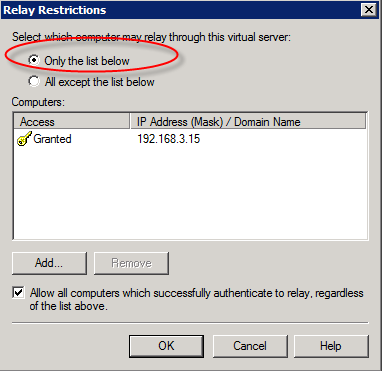
When you’re done, click OK. Then, click the access tab. Click the Authentication button to ensure that Anonymous  access is selected (it is by default). Then, click the relay button.

13 Comments

Best Error Message Ever

Today I tried to update the “Scan to SharePoint” module for my Fujitsu fi6140 scanner. I downloaded the update file, extracted it, and ran the setup. Here’s the error message I received.

clip_image002

Never mind the fact that if it needs to remove an older version fiirst, it should just go ahead and do that, how about using a proof-reader? I think that Fujitsu has the cash to hire a native english speaking reader.

Why is it that software is still mostly about the developers and not about the end users? I just shake my head.

Leave a Comment

Configuring and Branding a Visual Web Part Solution for SharePoint 2010 With Visual Studio 2010

Although I originally saw the new Visual Studio Tools for SharePoint 2010 back in August 2009, this past week was the first opportunity that I was able to get down to business with them, working with a web part solution (I don’t get to develop as much as I’d like to these days…). The beauty of these tools is that they not only (finally) give you a true “F5” approach to developing SharePoint applications, but they also build out and deploy web part solutions automatically for you. Indeed, every run of your application goes through the packaging and deployment process.

Before I get into this, I want to say that to a jaded old SharePoint developer, these tools are like manna from heaven. Not only is ease of use greatly improved, but so is speed of deployment and debugging.

However, unless you want your feature to be named “Feature1” and your solution to be named “MySolution”, and you want your assembly to be named exactly the same as your project, you’ll want to brand your solution a bit. Renaming a project and/or a component file will do a certain amount of refactoring automatically for you, but it isn’t complete and there are a few gotchas. I thought that I’d outline a few of them,and walk you through a branding process. This example uses a Visual Basic project,and there will be differences with C#, but the concepts remain the same.

1. Create your Visual Web Part, and give it a name. In this case, the name will be “Hello World” (Original, huh?)

image

2. Next, change the Web part names from “VisualWebPart1” to your name, in this case “HelloWorld” (notice the lack of spaces). When asked to perform a rename of all references, select yes. Don’t get too excited, it only changes code references.

image

3. Then, do a search and replace (Ctl-H) on the entire solution, and replace “VisualWebPart1” with your name – in our case “HelloWorld”

image

It should find and replace 5 references (for a VB.NET project at least).

4. If you want to change the name of your assembly and/or root namespace, go to project properties and do so. In our case, the Assembly name will be changed from “Hello World” to “SecondFoundation.HelloWorld”, and the root namespace will be changed from “Hello_World” to “SecondFoundation.HelloWorld”.

image

5. Next, edit the SharePointProjectItem.spdata file. This is a hidden file and you’ll need to turn on the “Show All Files” option in the solution explorer. This file controls the auto generation of several project components.

image

In the SafeControl entry, you’ll find that the Namespace attribute reflects the original name of the assembly. You’ll need to update it to reflect your change:

image

6. Next, edit your xxxx.webpart file (in our case HelloWorld.webpart). You’ll need to change the name attribute of the type entry in the <metaData> section to reflect your changes. While you’re at it, you should likely change the Title and Description properties to something meaningful, although this isn’t required.

image

7. You’ll need to edit your xxxxxxUserControl.ascx file (in our Case HelloWorldUserControl.ascx) and change the Inherits attribute from the Control entry (the last line) to reflect the namespace changes.

image

8. Optionally, edit the Elements.xml file, and change the Group property to something meaningful.

image

9. Open up the Features section in the Solution Explorer, and change the name from Feature1 to something meaningful. In our case, to continue on with my highly creative theme, we’ll call it HelloWorld.

image

10. Finally, Edit your .ascx file and add some content to allow us to see the web part on the page. I’ll leave it to you to guess what content I’m adding…..

Run your project, and add your new web part to the page that pops up. All should be well.

image

This should get you going with creating non-generic web parts. Enjoy.

1 Comment

Connection Limitations using BCS With SharePoint Foundation and a Workaround

When SharePoint 2010 was publicly revealed at the SharePoint conference in October 2009, one of the biggest “wow” announcement was the fact that Business Connectivity Services (BCS) would now be included with SharePoint Foundation (the free version of SharePoint). The feature set that BCS not only replaced, but significantly enhanced was know as Business Data Connectivity (BDC), and in the 2007 version, it was only available with the Enterprise SKU. From Enterprise to Free? It seemed too good to be true. Unfortunately in a few cases, it is.

BCS is surfaced to users primarily as External Lists, which essentially makes back end data look to SharePoint users (and some services) like simple SharePoint list data. An external list uses external content types, which are created using SharePoint Designer 2010.

The first step in creating an external content type is creating a data connection. The data connection can connect to one of three back end sources; a .NET Type, a SQL Server connection, or a WCF Service. A .NET Type can behave however the developer wants it to, but both the SQL server connection and the WCF type run into the same issue very quickly – identity.

These connection don’t use the typical connection strings that most people are used to with Excel or .NET. You specify a server and a database, but  your identity options are limited to the 3 choices shown below:

image

The default option “Connect with User’s Identity” will use the identity of the user at run time to connect to the source data. However,if the source data is on a different server than the one hosting SharePoint,we run immediately into the “double hop” problem. Essentially the server can’t just forward the user’s credentials on to another server at run time. If your organization is using Kerberos, this isn’t a problem for you (which is good, because you probably have many others…), but if not, then your only option is impersonation.

Impersonation is essentially telling the server to use a specific set of credentials (some proxy account) whenever it connects to the back end systems. Typical data connection strings that embed a user ID and password are an example of this. Storing credentials directly in strings is a huge security risk, and SharePoint 2010 has a very good secure store service that will manage these proxy accounts in a highly secure manner. BCS data sources are designed to take advantage of this service, and selecting either of the two impersonation options above will prompt for the Secure Store Application ID to use. Great solution right?

The problem is, SharePoint Foundation doesn’t include the Secure Store Service.

That means that if you’re not using Kerberos, and your data is on a different server, your BCS options are very limited when using SharePoint Foundation. You’re either going to have to write a .NET data type, or pony up the $$ for a SharePoint standard licence if you want to use the BCS features.

I will mention one quick sort of “low rent” approach that may circumvent the need for BCS. The data view web part has been a nice way to show related data or external data in SharePoint going back to SharePoint 2003. What many don’t know is that it’s actually bidirectional, which means that you can do the standard CrUD  operations.

It’s actually very easy to use. Using SharePoint designer, first move to the Data Sources node and create a new data source. These sources will allow standard connection strings, so impersonation becomes possible (if less secure – make sure that you use least privilege accounts!). Then create a new web part page. Move to the Insert tab and select the drop down tab below the Data View button, and select your data source.

image

You will immediately be presented with a read only grid of the data. The ribbon should now also be displaying the Data View Tools tab group, with the Options tab selected. From that tab select the inline editing drop down, and choose the CrUD options that you want used.

image

There are many options around formatting, what columns are displayed, paging etc. that you can play with, but at this point you’re ready to go.

Finally, if you want a good comparison of what features are included in which editions of SharePoint, you’ll find it here

UPDATE – Sept 23 2010

As I’ve just learned, Search Server Express 2010 (SSE) comes with the Secure Store Service. SSE 2010 is a free add on to SharePoint Foundation. So if you’re in this situation, go grab it and install it. That will solve the problem.

3 Comments